- Navigation System(intro)
- Navigation Types
- Waypoint(intro)
- How To Use
- Function and variables
- PlayerArrivedEvent
- Float MinDistance
- Compass + Markers
- Related Classes
- Compass Setup
- Adding Marker
- Function and variables
- SetCompassAsDefault()
- PlayerArrivedEvent() & Int MinDistance;
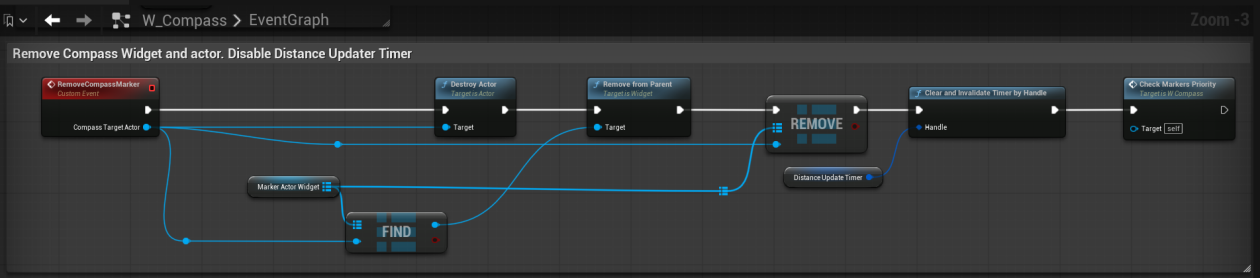
- RemoveCompassMarker()
- Conclusion and Links
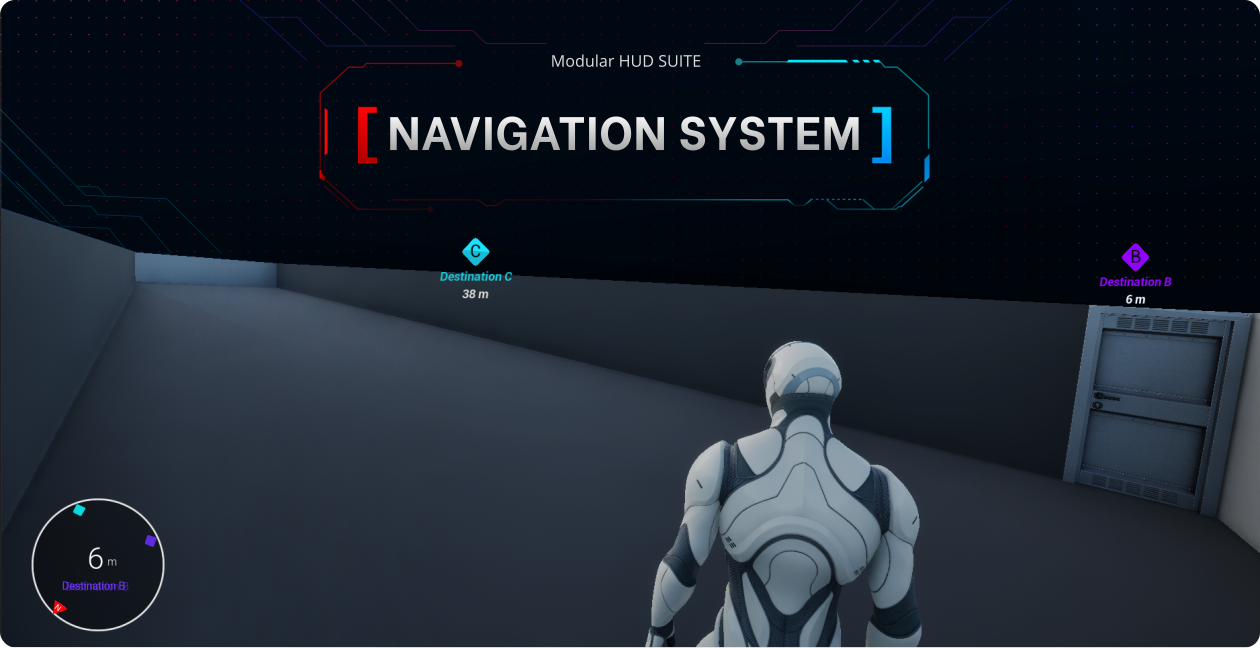
Navigation System
Waypoint & Compass + Marker
Using the Navigation HUD, you can guide the player to their destination, point to locations in the game world, and show where to go for the next mission. This plugin provides two types of Navigation HUDs: Waypoint and Compass with Markers.
Navigation types
Waypoint
A world widget placed in the game world, visible even behind objects. Guides the player with distance and direction.
Compass + Markers
A minimal compass with support for custom markers. Each marker can have a name, color, and priority level.
You can use both the Compass and Waypoint at the same time, or use just one of them.
Waypoint
Waypoint is a world-space HUD element that appears in the game world and remains visible even when behind objects. It shows the distance to the destination and an arrow pointing toward it.
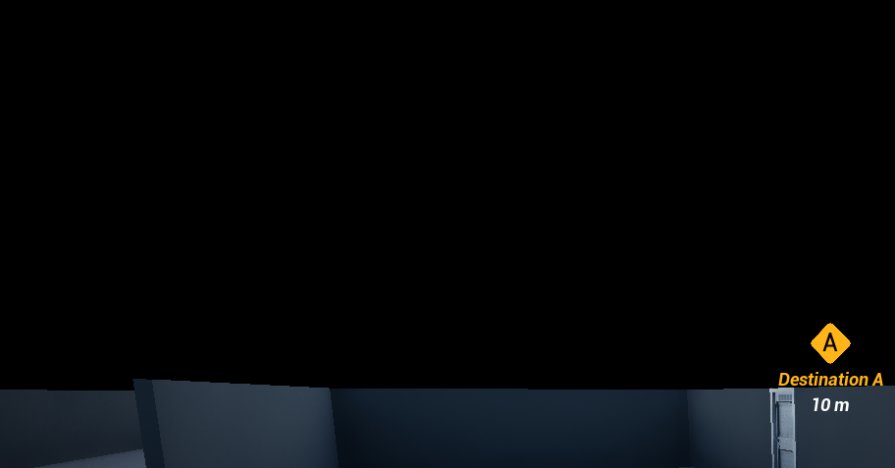
How to use
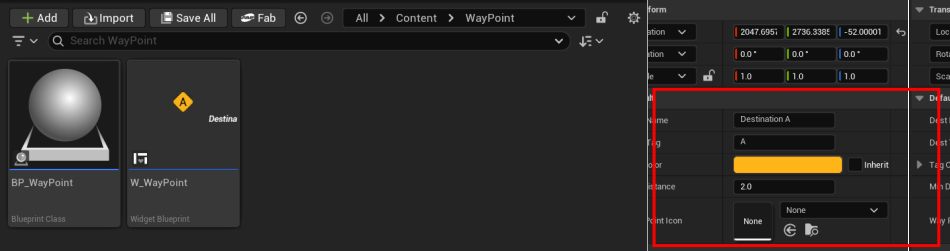
1. Place BP_Waypoint actor in the world at the destination.
2. Set the destination Name, Color, and a single word for priority(e.g., A, B)
3. Optionally, assign an Icon instead of text or color.
4. The waypoint will automatically guide the player with distance and direction.
Functions and Variables
BP_Waypoint.PlayerArrivedEvent()
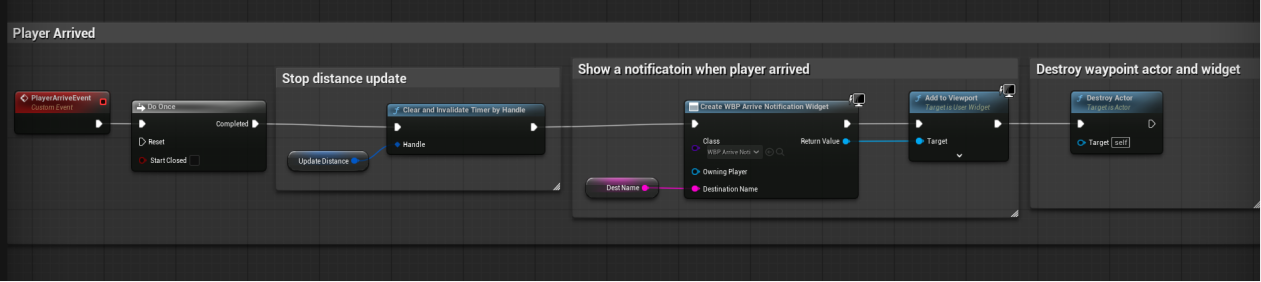
When player reaches to the minimum distance of BP_Waypoint, this event is called.it removes the waypoint actor, clears timer, and shows a notification.
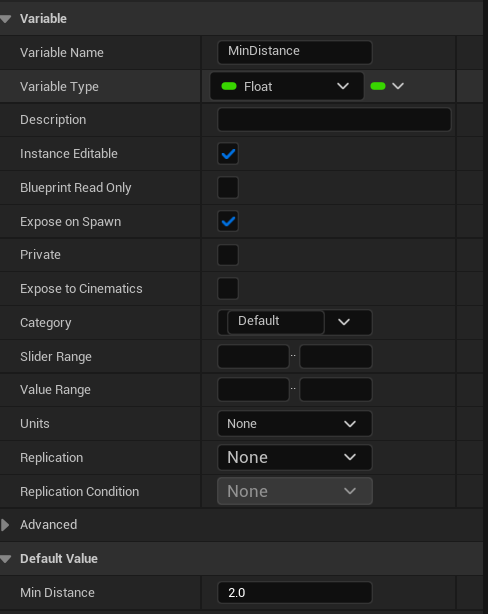
Float MinDistance;
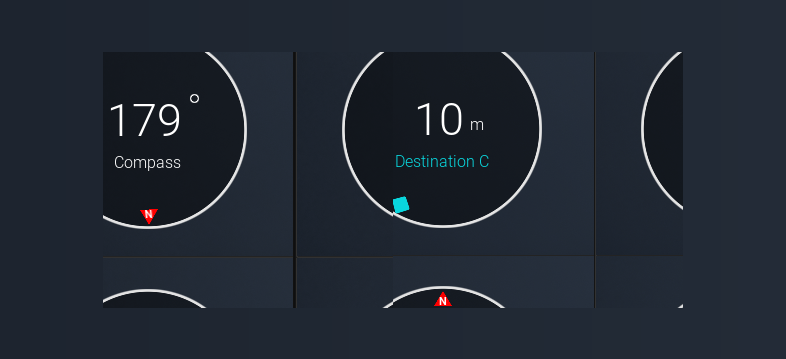
Compass + Marker
The Compass is a classic compass HUD element. You can add custom markers to it, each with a name, color, and priority. The compass shows the distance to the marker with the lowest priority value (i.e., highest importance).
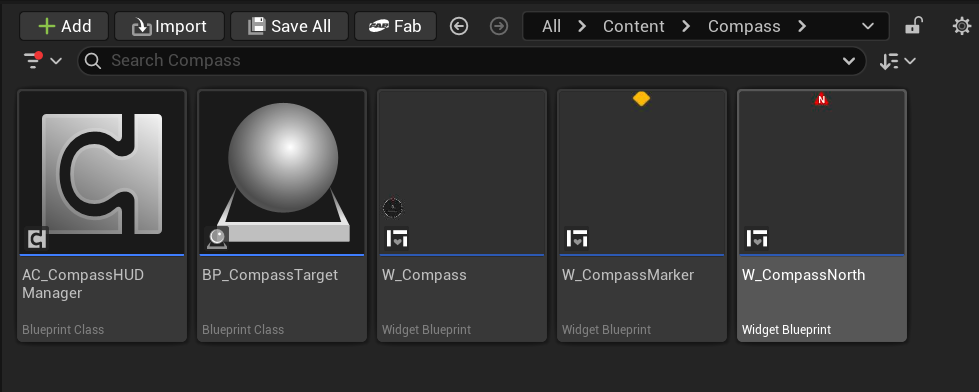
Related Classes
Compass Setup
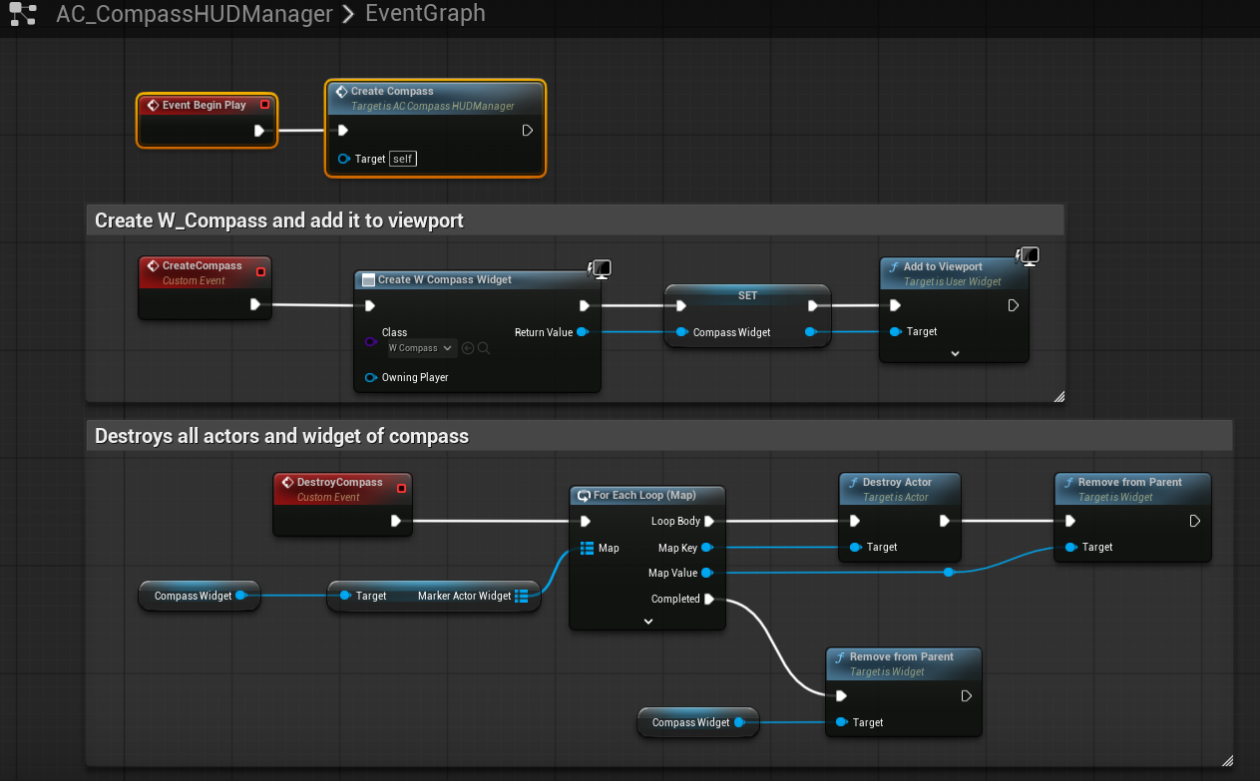
For setting up the traditional compass, you only have to add “AC_CompaasHUDManager” actor component to player character. it creates and adds W_Compass widget to viewport on eventBeginPlay(). you can create or destroy it from this actor component.
Adding Marker
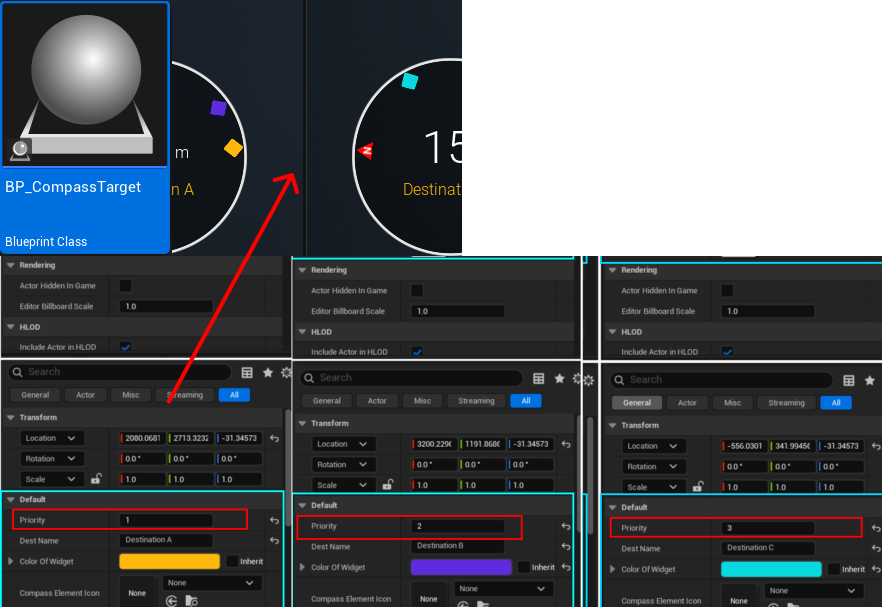
You can add custom markers to compass by adding “BP_CompassTarget” to game world, initialize its default variables, name, color, icon(optional) and priority. The compass shows the distance to the marker with the lowest priority value (i.e., highest importance).
Functions and Variables
W_Compass.SetCompassAsDefault()
Changes marker compass to traditional compass.
W_Compass.PlayerArrivedEvent() & Int MinDistance;
When player reaches the MinDistance of BP_CompassTarget the PlayerArrivedEvent() is called to remove the marker from compass.
W_Compass.RemoveCompassMarker()